
If you’ve been putting effort into creating great content but still struggling to rank higher on Google, the problem might not be what you’re writing. It could be who Google thinks is writing it.
That’s where Author SEO comes in. It’s the practice of optimizing your author profile so that search engines can recognize the real person behind your content, including your qualifications, your experience, and your credibility.
Google’s Human Quality Raters use E-E-A-T (Experience, Expertise, Authoritativeness, and Trustworthiness) to evaluate how well its ranking systems are surfacing trustworthy content. E-E-A-T isn’t a direct ranking factor, but giving Google clear author signals helps its systems recognize your content as credible.
In this guide, I’ll walk you through how to set up Author SEO in WordPress. Whether you’re running a personal blog or a multi-author website, you’ll have everything in place to give your content a stronger chance of ranking in Google search results — no coding needed. 🙌
📘 TL;DR: You can easily set up Author SEO in WordPress using All in One SEO (AIOSEO). Simply install the plugin, enable the Author SEO (E-E-A-T) feature, and fill out your users’ expanded profile fields.
AIOSEO will automatically generate the right schema markup for Google, including Person schema for each author and Organization schema for your site. It also lets you display beautiful author bio boxes on your posts without any code.
For multi-author sites, you can also embed live social feeds on author pages using Smash Balloon to reinforce credibility.
What Is Author SEO?
Author SEO is the practice of optimizing your author profile so that search engines can identify and verify the person behind your content, including their credentials, work history, and external profile links.
Think of it as a digital résumé for search engines. The more clearly your expertise is defined, the more confidently Google can decide whether your content deserves to rank.
Why Set Up Author SEO in WordPress?
Author SEO supports the E-E-A-T criteria, which is the set of quality signals Google uses to evaluate whether a page deserves a top position in search results.
E-E-A-T stands for:
Experience — Has the author actually done or lived what they’re writing about?
Expertise — Does the author have the knowledge or qualifications to speak on this topic?
Authoritativeness — Is the author recognized by others in their field?
Trustworthiness — Can readers and search engines rely on this author’s content to be accurate and honest?
💡 Note: Google has clarified that E-E-A-T isn’t a direct ranking factor. It comes from the Search Quality Rater Guidelines, which human raters use to assess how well Google’s ranking systems are working. Strong author signals still help Google attribute content and judge trust, which can influence rankings indirectly. But no profile field or schema setup guarantees a ranking lift on its own.
Many site owners focus entirely on keyword research and on-page SEO, but overlook the author signals that Google increasingly relies on. That’s a missed opportunity, especially in competitive niches.
Here’s why Author SEO is worth your time:
It strengthens your E-E-A-T signals — Google evaluates your Experience, Expertise, Authoritativeness, and Trustworthiness when deciding how to rank your content. A well-optimized author profile gives Google more evidence of E-E-A-T.
It builds reader trust — Visitors are more likely to engage with content when they can see who wrote it and confirm that person has real credentials.
It gives your YMYL niches an edge — In topics like health, finance, or legal advice (called “Your Money or Your Life” content), Google holds authors to an even higher standard. A credible author profile can make a difference in how your content ranks.
It strengthens your structured data — Author schema markup helps Google understand who wrote your content, which contributes to how confidently it can attribute and rank it.
It works for solo bloggers and multi-author blogs alike — Whether you’re the only writer or managing a team, every author on your site can benefit from a properly optimized profile.
Now, let’s see how to set up author SEO in WordPress. Here’s everything I’ll cover in this article:
Step 1: Install the All In One SEO (AIOSEO) Plugin
To set up Author SEO in WordPress, the first thing you’ll need is the right tool.
I recommend using All In One SEO (AIOSEO) because it’s the only major WordPress SEO plugin with a dedicated, purpose-built Author SEO (E-E-A-T) module. It gives authors structured fields for expertise, experience, and credentials that flow directly into Person schema, instead of relying on the default WordPress user profile.
At WPBeginner, we use the AIOSEO plugin to optimize our post titles, configure OpenGraph settings, create schema markup, and more. See our complete AIOSEO review to learn more about what it can do.
To follow this tutorial, you’ll need an AIOSEO account.
On the AIOSEO website, click ‘Get All in One SEO for WordPress,’ choose a plan that comes with the Author SEO (E-E-A-T) feature, and complete the checkout.
💡 Note: You’ll need at least AIOSEO’s Plus plan to use the Author SEO (E-E-A-T) feature. That said, you can install the free version of AIOSEO first to explore the plugin before upgrading.
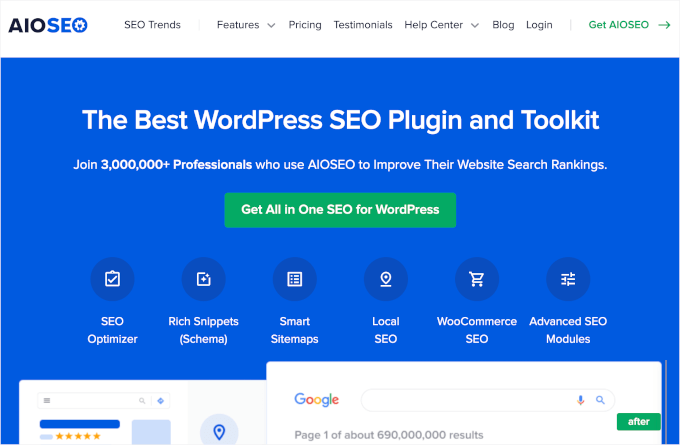
Upon signup, you’ll land in your own AIOSEO dashboard, where you can download your plugin zip file and copy your license key.
Now, you can go ahead and install and activate the All In One SEO plugin. Simply navigate to Plugins » Add Plugin in your WordPress admin area to start.

On the next screen, you can click the ‘Upload Plugin’ button.
Then, click the ‘Choose File’ button to upload your AIOSEO zip file from your local computer.
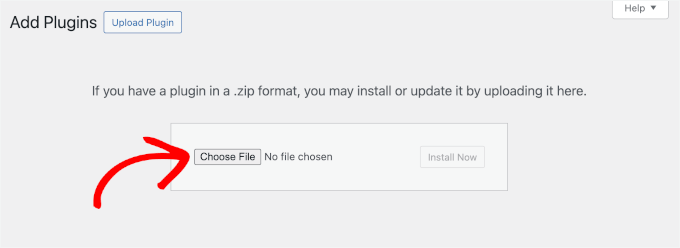
Once uploaded, click ‘Install Now,’ followed by ‘Activate.’ If you need help, please refer to our guide on how to install a WordPress plugin.
AIOSEO will then add a new menu to your WordPress dashboard. From here, let’s navigate to AIOSEO » General Settings to verify your license key.
In the respective field, enter your AIOSEO license key and hit ‘Activate.’
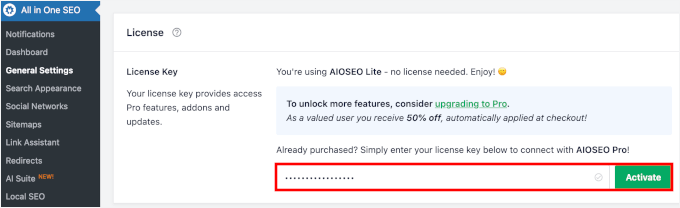
With that done, you can manage all of your SEO settings, including your author profiles, from the All in One SEO menu in your WordPress sidebar.
For a more detailed walkthrough of the setup process, see our guide on how to setup All in One SEO for WordPress correctly.
Step 2: Set Up the Author SEO (E-E-A-T) Feature
Before you create or edit a user, you’ll need to activate the Author SEO (E-E-A-T) feature. This will allow you to unlock extended author profile fields and structured data settings.
To do this, head to the Feature Manager in AIOSEO and toggle on ‘Author SEO (E-E-A-T)’ to activate it.
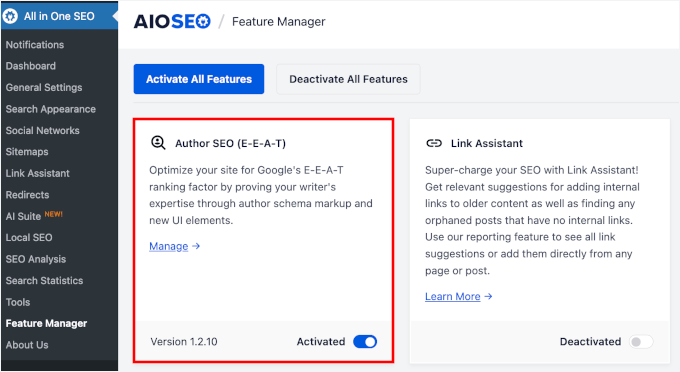
Once that’s done, go to ‘Search Appearance’ and click on the ‘Author SEO’ tab.
Here you’ll find a few settings to configure.
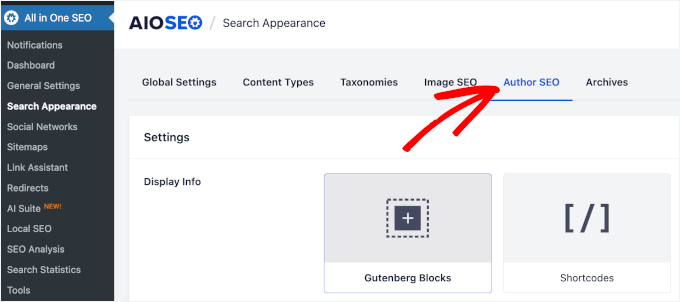
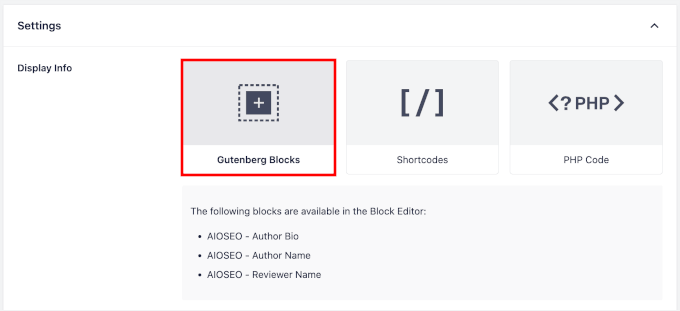
First, you’ll want to set ‘Display Info’ to Gutenberg Blocks.
I recommend selecting the Gutenberg Blocks option because it is the easiest way to display author information without touching any code.
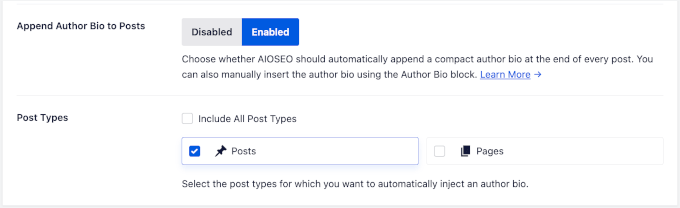
Then, you can hit ‘Enable’ next to ‘Append Author Bio to Posts.’ This lets you automatically add your author bio box to the bottom of your articles, saving you the hassle of inserting it manually every time.
For the post type, select ‘Posts.’ If it’s relevant to your WordPress site, you can also select ‘Pages’ or tick ‘Include All Post Types.’
Next, let’s scroll down to the ‘Author Experience Topics’ section.
This is where you’ll add all the topics your blog covers. It’s worth taking your time here, because these topics will be used later when you assign individual writers their own Author SEO settings.
Think in two layers: start with broad umbrella terms like SEO, AI SEO, or Content Marketing, then get more specific with the tools and products you write about, like WordPress. For each one, fill in the relevant URL and any referencing pages that back it up.
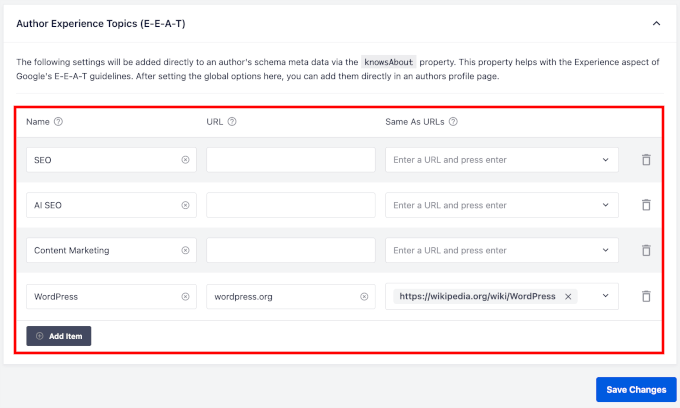
When you’re happy with everything, click ‘Save Changes’ and you’re done with this step.
Step 3: Create an Author Profile
With AIOSEO installed and set up, the next step is to make sure every author on your site has a complete WordPress user profile.
This matters more than most people realize because your user profile is where Google pulls the foundational information it needs to evaluate your credibility as an author.
To get started, go to Users » Add New User from your admin area.
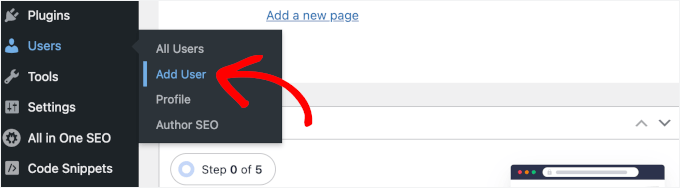
💡 Note: If the author already has an account, you can skip this and go to Users » All Users to edit their existing profile instead.
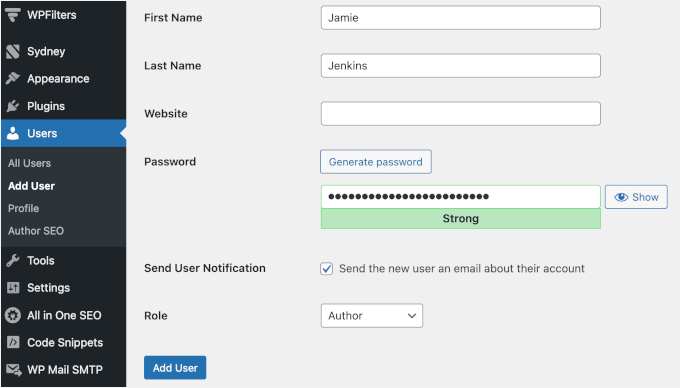
Here are all the fields you’ll see on your screen:
Username (required) — This is the unique name used to log in to WordPress. Once set, it can’t be changed, so choose something professional. I recommend using the author’s real name or a consistent variation of it.
Email (required) — Required for the account and used for WordPress notifications.
First and Last Name — This is how the author will appear publicly on your website.
Website — Add the author’s personal or professional website if they have one.
Password — You can autogenerate a password for your new user and send it to them via the welcome email. The user can then change their password after logging in for the first time.
Send User Notification — This is like a welcome email, informing the author about their new account.
Role — Assign your new user a role, in this case, Author.
With that done, go ahead and click the ‘Add User’ button.
If your site covers topics in the YMYL (Your Money or Your Life) category — such as health, finance, legal advice, or safety, then adding a reviewer to your posts is a smart extra step.
Google holds this type of content to a higher standard. And showing that an article has been reviewed by a qualified expert can meaningfully strengthen your E-E-A-T signals.
🛑 Important: A reviewer is different from an author. The author is the person who wrote the content, while the reviewer is a qualified professional who has checked it for accuracy.
Having both clearly identified on a blog post tells Google, and your readers, that the information has gone through an additional layer of verification.
Simply repeat the process to add a new user for your reviewer.
Step 4: Complete Author Information in the Author SEO Section
Now that the user profile is set up, it’s time to add the deeper author details that AIOSEO uses to generate structured data for search engines. This is where Author SEO really starts to take shape.
To access these settings, go to Users » All Users from your WordPress dashboard. Hover over the author’s name and click ‘Edit.’
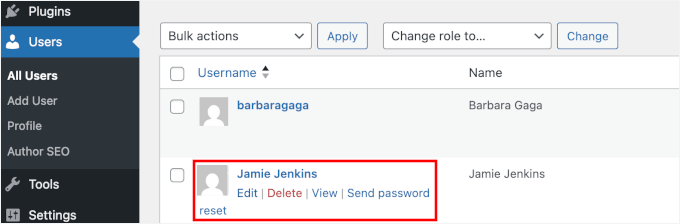
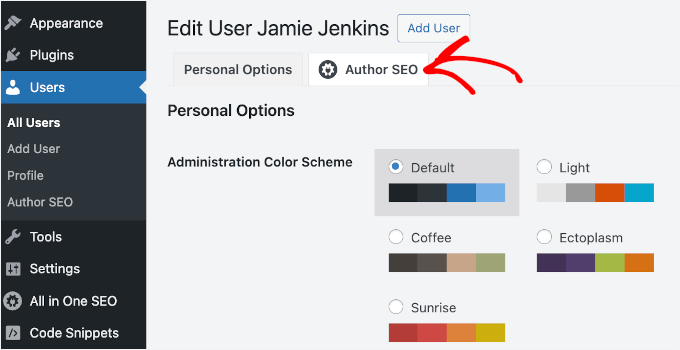
Once you’re inside the profile, you can switch to the ‘Author SEO’ tab added by AIOSEO.
You can find it next to the ‘Personal Options’ tab, like this:
Core Profile Fields
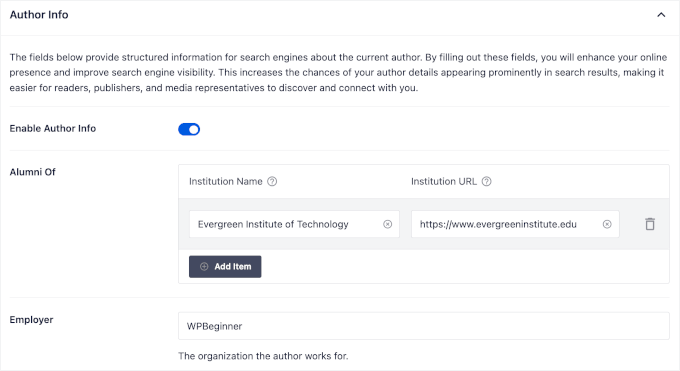
Here, you’ll want to fill in the following core details:
Institution Name — List any universities, colleges, or institutions the author has attended.
Institution URL — Enter the institution URL if available.
Employer — Enter the name of the organization or company the author works for.
These fields feed directly into the author’s JSON-LD schema markup, which is a type of structured data that search engines read behind the scenes.
Then, there are these fields:
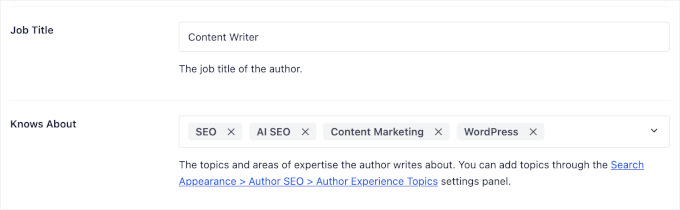
Job Title — Add the author’s professional title, such as “Content Writer” or “WordPress Developer.”
Knows About — Fill this out with the Author Experience Topics you have set up in the previous step.
Here’s what you might see on your screen:
🧑💻 Pro Tip: Don’t stuff the Knows About field with broad topics like WordPress, blogging, or SEO. Google can’t verify expertise that vague, so the schema signal gets diluted.
Instead, list 3-5 narrow topics you’ve actually written about and can back up with credentials or published work. Match them to your real article categories. For example, “WordPress security plugins” beats “security,” and “WooCommerce subscriptions setup” beats “eCommerce.”
Awards and Spoken Languages
Next, you can add whatever awards the author has received in the past as well as the languages the author speaks.
Do note that the Awards and Spoken Languages fields won’t be visible to readers on your posts, but don’t skip them. AIOSEO outputs this information as schema markup in the background, and Google can use it to better understand the author’s credibility.

Author Image, Excerpt, and Bio
After that, you’ll find the:
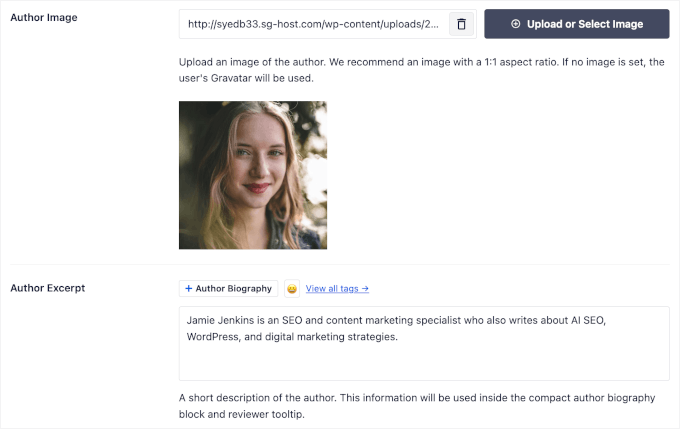
Author Image — Upload a real, clear photo of the author. Avoid default Gravatar silhouettes, stock headshots, company logos, or an AI-generated face because they weaken E-E-A-T. Plus, if you use the same photo on the author’s LinkedIn, X, or other public profiles, then Google can match the identity across the web and reinforce E-E-A-T.
Author Excerpt — Write a short bio that gives readers a quick snapshot of who the author is. This includes information on their background, area of expertise, and what makes them credible on the topics they cover.
Author Bio — This is the longer version of the author’s story. Use it to go into more detail about their experience, qualifications, portfolio, and anything else that establishes them as a trustworthy, authoritative voice in their niche.
I recommend writing the bio in the third person and keeping it focused on what makes the author qualified to write on your site’s topics.
How to Write a Bio That Actually Signals E-E-A-T
A bio that earns trust does more than describe the author. It gives Google and your readers specific, checkable evidence that this person should be writing on this topic.
Start with the basics: the author’s full name, their role on your site, and the topic area they cover.
Then build the rest of the bio around the four E-E-A-T pillars:
Experience: What has the author actually done? Name real projects, years in the field, or hands-on work. “Has run her own Etsy shop since 2018” beats “passionate about eCommerce.”
Expertise: Qualifications, training, or certifications. Be specific. “Certified WordPress developer” or “holds a BA in Journalism from NYU” is much stronger than “highly qualified writer.”
Authoritativeness: Named outlets, awards, or speaking spots. “Quoted in Forbes and Wired” or “spoke at WordCamp US 2024” gives Google something concrete to verify.
Trustworthiness: Transparency signals. Mention if the author fact-checks with primary sources, discloses affiliate relationships, or reviews content on a set schedule. If you use AI assistance for drafting, then say so and explain how a human verifies the output.
The rule of thumb: numbers, named outlets, and dates beat adjectives every time. “Veteran content strategist” is filler. “Has written for HubSpot and Search Engine Journal since 2016” is a signal.
Here’s the difference in practice:
Before: Sarah is a passionate writer who loves helping small businesses succeed online. She has years of experience in digital marketing and is dedicated to creating high-quality content.
After: Sarah Chen is a content strategist who has helped 40+ small businesses set up their WordPress sites since 2019. She’s a certified Google Analytics professional, has been quoted in Search Engine Land, and personally tests every plugin she recommends on a staging site before publishing.
The “after” version gives Google three verifiable claims (the certification, the named publication, the testing process) and gives readers a clear reason to trust Sarah on WordPress topics. That is what a bio is supposed to do.
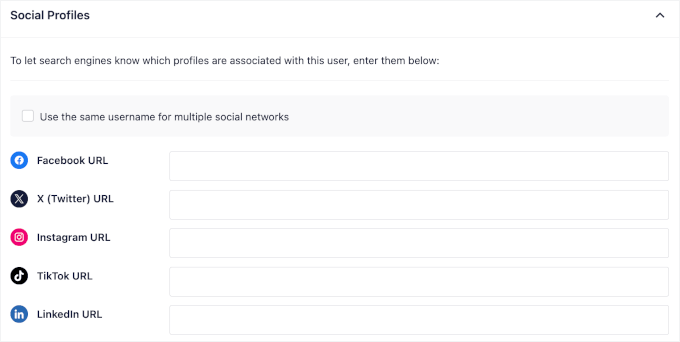
External Profile URLs
On top of those core details, you’ll also want to add external profile URLs. These are links to places outside your website where the author has a verified presence.
For example:
A LinkedIn profile
Listings in industry directories or professional associations
Portfolio site or other published work on reputable platforms
These external links act as additional authorship signals. They help Google cross-reference the author’s identity and credentials across the web, which strengthens the overall trustworthiness of their profile.
How These Fields Map to Person Schema
Every field you fill out in the Author SEO tab doesn’t just appear on your website. It also gets translated into Person schema. It’s a type of structured data that tells Google who the author is in a format it can read and understand, so it can match the right person to the right content.
Here’s how each field maps to a Person schema property:
The sameAs property deserves special attention. When you add LinkedIn, a portfolio site, or an industry directory listing to the social profiles section, AIOSEO outputs those URLs as sameAs values in the schema. This tells Google: “This author also exists here, here, and here.”
But a sameAs URL only counts if Google can confirm it’s actually the same person. That means the profile you link to needs to match your author bio on the basics: same full name, same (or clearly recognizable) photo, same employer or affiliation, and a byline history that lines up with what your WordPress site says about them.
Some platforms carry far more weight than others. I recommend focusing on profiles that Google already treats as identity sources:
LinkedIn: the single most useful sameAs target for most authors.
Muck Rack or Contently: verified journalist and writer directories.
Industry association or speaker directories: anywhere the author is listed with a bio.
Published bylines on recognized publications: author pages on other sites they write for.
Crunchbase, ORCID, or Google Scholar: depending on whether the author is in business, research, or academia.
What you’re building toward is a Knowledge Panel: once Google has enough consistent cross-references confirming the same person across the web, it starts treating that author as a known entity and can eventually attribute content, expertise, and trust to them directly in search results.
The more of these fields you fill in, the richer your Person schema becomes, and the more evidence Google has to evaluate your author’s E-E-A-T signals.
Once you’ve filled in all the details, scroll down and click ‘Update User’ to save your changes.
From here, you can repeat this process for all of the authors (and reviewers) you have.
Step 5: Set Up Organization Schema (For Businesses & Multi-Author Blogs)
Author SEO covers the individual writer. But Google also wants to identify the organization publishing the content.
That’s the other half of the E-E-A-T picture. Without it, Google sees credible authors with no verified entity behind them.
AIOSEO handles this through Organization schema, which it generates from a single Knowledge Graph settings panel. Go to AIOSEO » Search Appearance and open the ‘Global Settings’ tab.
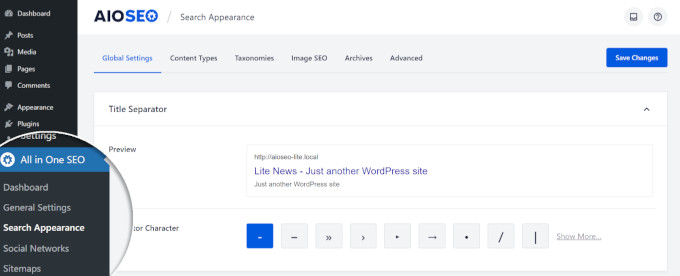
Under ‘Knowledge Graph,’ you’ll want to confirm that ‘Organization’ is selected, not ‘Person.’
This is the right choice for any site with more than one author, or any site representing a brand rather than a solo individual.
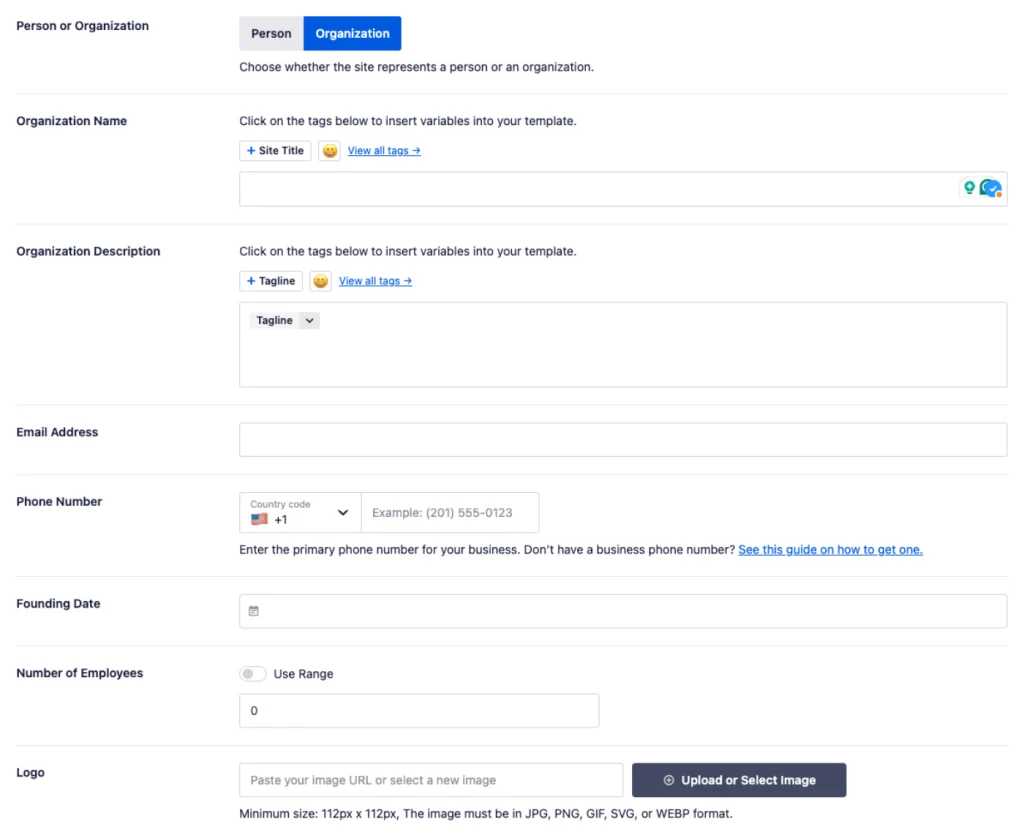
💡 Note: If you’re a solo blogger representing yourself rather than a brand, select ‘Person’ here instead. You’ll fill in your own name, bio, and social profiles, and AIOSEO will generate Person schema for your site as a whole, rather than Organization schema.
From here, fill in the following fields:
Organization Name — Your site or company name as it appears publicly.
Organization Logo — Upload a clear, recognizable logo. Google uses this to identify your brand in search results.
Phone Number — Optional, but adds a layer of legitimacy for YMYL sites.
Contact URL — Link to your contact page so Google can verify a legitimate point of contact.
These fields map directly to Organization schema properties that Google reads behind the scenes:
Don’t forget to also add your organization’s social profile URLs at the bottom of this section, just like you did for individual authors.
These become sameAs values in the Organization schema and help Google cross-reference your brand’s identity across platforms like LinkedIn, Facebook, and YouTube.
Click ‘Save Changes’ when you’re done.
Step 6: Verify Your Author Schema
Now, you need to make sure that Google can actually find and crawl your author’s archive page. This is a dedicated page that lists all the posts written by a specific author, and it can usually be found at a URL like yoursite.com/author/username.
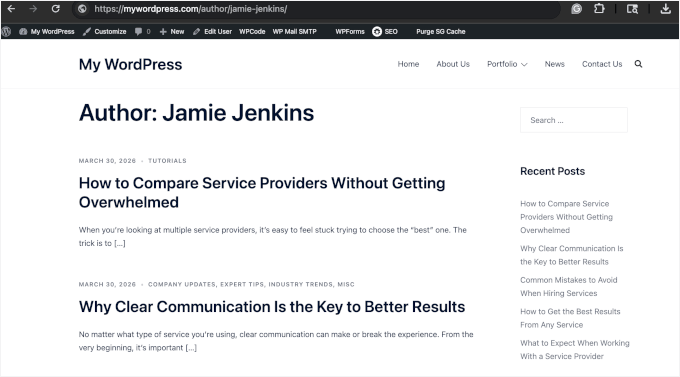
First, make sure your author archive page is set to index in Google. I’ll cover exactly when and why you might choose differently in the Bonus Tip below.
For now, go to AIOSEO » Search Appearance, open the ‘Archives’ tab, and confirm that ‘Show in Search Results’ under ‘Author Archives’ is set to ‘Yes.’
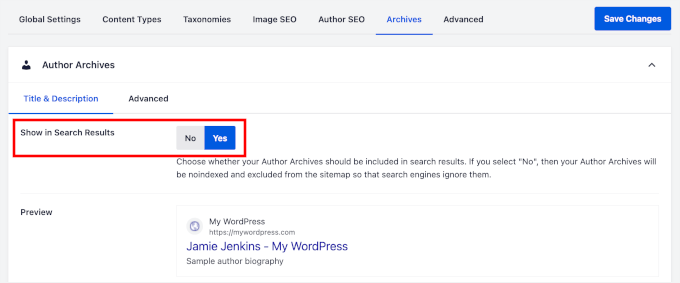
With that set, it’s time to confirm that the schema markup is actually showing up correctly. The best way to do this is with Google’s Rich Results Test tool because it’s free and takes just a minute to use.
What Google Sees With Author SEO Configured
After completing the Author SEO fields, you should see a fully populated Profile page result with all the structured data AIOSEO generated from your inputs.
To get started, open a new browser tab and go to Google’s Rich Results Test. Paste your author page URL into the search bar and click the ‘Test URL’ button.
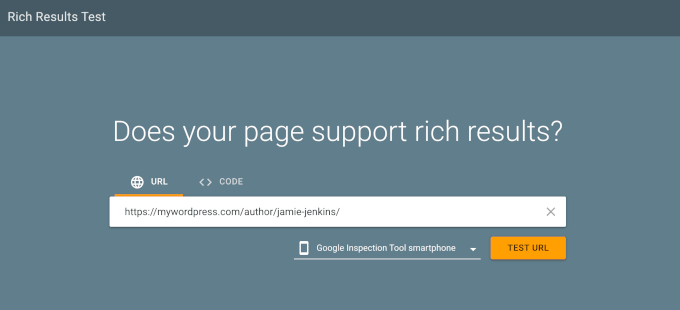
Your author page URL will typically follow this format: yoursite.com/author/username. If you’re not sure what it is, you can find it by clicking on the author’s name on any published post on your WordPress site.
After the test runs, you’ll see a summary of the structured data Google detected on the page.
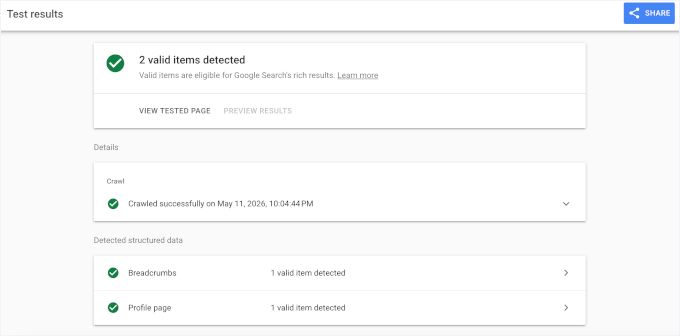
From here, expand the ‘Profile page’ result to check that the key Person schema properties are populated correctly:
name — The author’s full name
jobTitle — Their professional role
worksFor — Their employer or organization
knowsAbout — Their listed expertise topics
sameAs — Their external profile URLs
💡 Note: Schema changes don’t always show up in the Rich Results Test right after saving, so if your Author SEO fields look incomplete in the test, wait a few minutes and try again before troubleshooting.
Also keep in mind that the Rich Results Test only confirms eligibility for Google’s documented rich-result types, which don’t include Person or ProfilePage. That means your author schema can be perfectly valid and still show “no rich results detected.”
For a general validity check, you can run the same URL through the Schema Markup Validator at validator.schema.org. It reports on any schema type, not just the ones Google highlights.
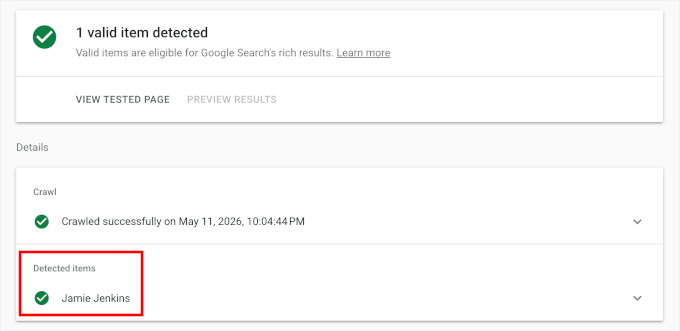
If the tool flags any errors or warnings, don’t worry because this is common the first time around.
Click on each issue to see what needs to be fixed, then head back to the Author SEO section in AIOSEO to make the necessary updates. Run the test again to confirm everything is resolved.
Step 7: Add AIOSEO Author Blocks in Your Posts
With your author schema in place, the next step is to make sure that the author information is visible to readers directly inside your posts.
AIOSEO includes two dedicated author blocks that you can add to any post or page using the WordPress block editor.
To add an author block, open a post in the block editor and click the ‘+’ button to open the block inserter. Search for “author” and you’ll see the AIOSEO author blocks available to insert.
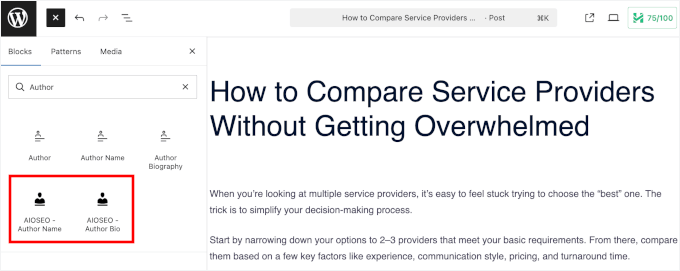
💡 Note: If you enabled the ‘Append Author Bio to Posts’ option back in Step 2, AIOSEO will automatically add a compact Author Bio block to all your selected post types, whether they are blog posts, custom post types, or pages.
AIOSEO Author Name Block
The Author Name block is designed to appear near the post title.
It displays the author’s name and profile picture, giving readers an immediate sense of who wrote the article before they’ve even started reading.
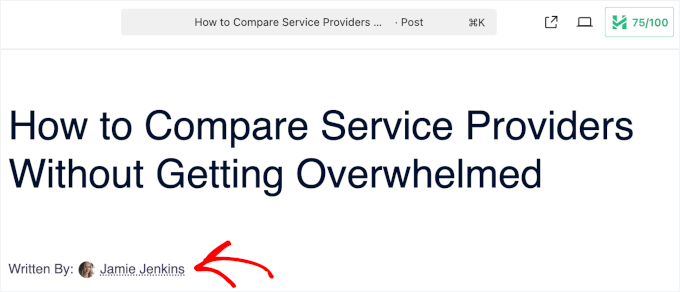
It’s a simple but effective trust signal, especially for first-time visitors who want to quickly assess whether the content comes from a credible source.
AIOSEO Author Bio Block
The Author Bio block is designed to appear at the bottom of the post.
It includes the author’s full bio, educational background, social media links, and area of expertise. This way, readers get a more complete picture of who the author is after they’ve finished reading.
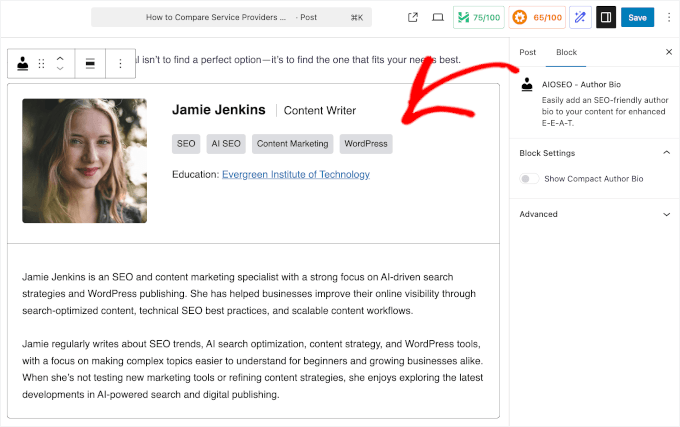
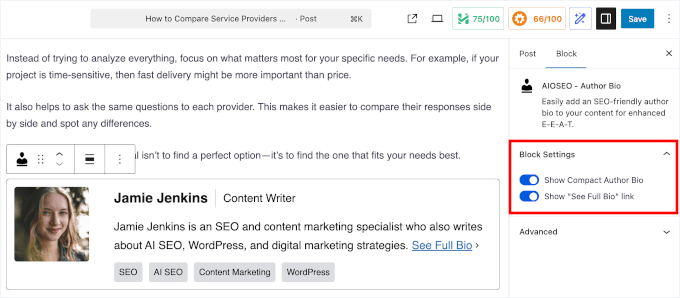
You can configure this block in two ways:
Compact — A shorter version that shows the essentials without taking up too much space. Works well for news-style sites or WordPress blogs where post length and layout are a priority.
Full — A more detailed layout that gives the author’s background more room to breathe. Great for author-focused sites or YMYL content, where establishing credibility is especially important.
Once you’ve added and configured your author blocks, click ‘Update’ or ‘Publish’ to save your changes to the post.
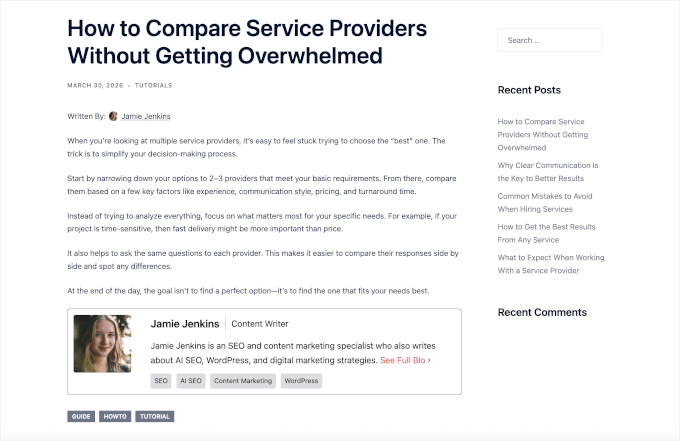
Now, you can visit your posts to see your author box, optimized for SEO and E-E-A-T.
Here’s what mine looks like on the front end:
Step 8: Add a Reviewer for YMYL Content (Optional)
If your site covers YMYL topics like health, finance, or legal advice, then adding a reviewer is the highest-value E-E-A-T move you can make beyond setting up your author profiles.
A reviewer is a qualified expert who has checked the article for accuracy. Showing both the author and the reviewer on a post tells Google the content has been through an extra layer of verification, which matters a lot in niches Google scrutinizes more closely.
Create a Reviewer User
Start by adding the reviewer as a WordPress user, the same way you added your authors in Step 3.
Go to Users » Add New User and fill in their name, email, and role. If the reviewer won’t be writing posts, then the Contributor role is a safe choice. It gives them a profile without publishing access.
Fill Out the Reviewer’s Author SEO Fields
Next, go to Users » All Users, hover over the reviewer’s name, and click ‘Edit.’
Open the ‘Author SEO’ tab, the same one you used in Step 4.
Fill out the fields that signal credibility for your niche: job title, employer, institution, awards, knows about, bio, and external profile URLs like LinkedIn.
For example, for a medical reviewer, that might be their MD credential and the hospital they practice at. For a financial reviewer, their CFP designation and firm.
These fields feed into the reviewer’s Person schema, just like they do for authors. The stronger the reviewer’s documented credentials, the more weight Google gives the review signal.
Add the AIOSEO
Reviewer to Your Post
Adding a reviewer to a post takes two quick actions: inserting the AIOSEO –
Reviewer Name block where you want the credit to appear, and then picking the
reviewer in the post sidebar.
Open the post you want to attribute and click the ‘+’ button in the block editor. Search for “reviewer” and insert the AIOSEO – Reviewer Name block.
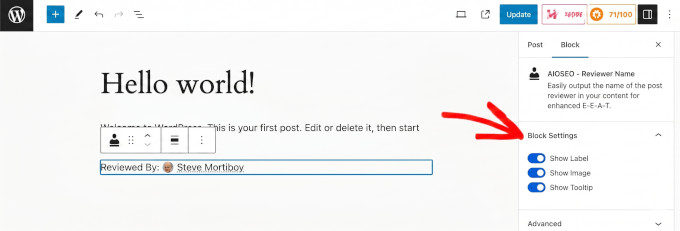
Place it somewhere visible, like near the top of the post or just below the author meta, so readers see the reviewer’s name before they commit to the content.
Next, look at the right-hand sidebar of the editor for the ‘Reviewer’
dropdown. This is where you tell AIOSEO which user actually reviewed the post.
The block won’t show a name on its own until you set this.
Click the dropdown and pick the user who reviewed this post.
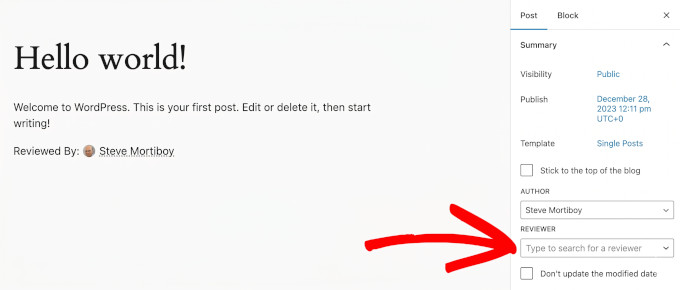
Once the reviewer is set, simply update or publish the post.
The AIOSEO – Reviewer Name block on the page will pull in the reviewer’s name and photo automatically, and AIOSEO will output the reviewer’s details in the page’s structured data alongside the author’s. This means Google can read the writer-and-reviewer relationship directly from the schema.
Bonus Tip: Optimize Your Author Archive Page
Every WordPress site automatically creates an author archive page for each user.
This page does real work for your SEO. When a search engine crawls one of your posts, it follows the author link to the archive page. That’s where AIOSEO outputs the full Person schema markup you configured in Step 4.
But before you focus on making it look good, you need to make a foundational decision first: should your author archive pages be indexed by Google at all?
Should You Index or Noindex Author Archive Pages?
The answer depends on your site’s setup.
Here’s a simple way to think about it:
📘 Important: If you noindex your author archive pages, then the Person schema AIOSEO generates will still exist in the page’s code, but Google won’t factor it into rankings. This means the structured data you set up in Step 4 only delivers its full SEO value when the author archive page is set to index.
Make the Page Look Trustworthy
If you’re noindexing your author archive pages, you’re done here.
If you’ve decided to index these pages, it’s worth taking a little time to make them look good too. A well-presented author page builds trust with readers who land there after clicking an author link, and reinforces the credibility signals you’ve already built into your schema markup.
Here are a few ways to improve it:
Use your theme’s built-in options — Many WordPress themes include basic styling for author archive pages. Check your theme’s customizer or full-site editor to see what’s available.
Use a page builder — If your theme doesn’t offer much control, a page builder plugin like SeedProd gives you full control over the layout and design.
Add a social media feed — Embedding the author’s live social feed using a plugin like Smash Balloon is a simple way to show that the author is a real, active person with a public presence — which reinforces trust for both readers and search engines.
The goal is to make sure the author archive page looks like a real, trustworthy destination, not an unstyled list of posts.
See our guide on how to customize your WordPress theme for a full walkthrough.
Frequently Asked Questions About Author SEO
Here are some of the most common questions our readers ask about setting up Author SEO in WordPress:
Why is Author SEO important?
Author SEO is important because it directly supports Google’s E-E-A-T guidelines, which the search engine uses to evaluate whether your content deserves a top position in search results. Without clear author signals, even well-written content can struggle to rank, especially in competitive or YMYL niches.
Should I noindex author pages on a single-author blog?
Yes, in most cases. On a single-author blog, your author archive page typically duplicates your homepage or blog index, which creates thin content and potential duplicate content issues. Noindexing it avoids those problems. The exception is if your author page has a significantly different layout or content from your homepage, in which case indexing it may still make sense.
Does Organization schema help individual post rankings?
Not directly. Organization schema lives on your homepage, so it doesn’t attach to individual posts. But it works alongside the Person schema on your author pages to give Google a complete, verified picture of your site. Think of it as the foundation that makes your author-level E-E-A-T signals more credible.
Which tool can help me with my author SEO?
All In One SEO (AIOSEO) is one of the best tools for setting up Author SEO in WordPress. It includes a dedicated Author SEO section, generates JSON-LD schema markup automatically, and provides author blocks you can add directly to your posts, all without coding.
Does AIOSEO’s Author SEO feature work alongside Yoast SEO or Rank Math?
You should only run one SEO plugin at a time. If you already use Yoast SEO or Rank Math, then you’d need to deactivate it before switching to AIOSEO so that two plugins aren’t outputting Person and Article schema for the same post. Yoast and Rank Math both handle author metadata at a basic level, but neither offers a dedicated Author SEO module with the same depth as AIOSEO’s author blocks, reviewer fields, and automatic JSON-LD output.
How long does it take for E-E-A-T author signals to show up in Google search results?
Plan on weeks to months. Google needs to recrawl your author pages, re-evaluate the new Person schema, and update how it scores your content. Keep in mind that E-E-A-T is not a direct ranking factor. It’s a set of guidelines Google’s quality raters use, so stronger author signals support better rankings over time but don’t guarantee an immediate lift.
Do I need to add a reviewer to every article for E-E-A-T?
For YMYL topics like health, finance, and legal, then yes. A qualified reviewer with verifiable credentials is one of the strongest trust signals Google looks for on this kind of content. For non-YMYL topics, a reviewer is optional, but adding one to your flagship or cornerstone articles is still a smart way to back up your expertise claims.
Next Steps to Improve Your WordPress SEO
I hope this blog post has helped you set up author SEO in WordPress to boost your Google E-E-A-T.
If you found this helpful, you might want to check out our other guides on:
If you liked this article, then please subscribe to our YouTube Channel for WordPress video tutorials. You can also find us on Twitter and Facebook.
 English
 Arabic
 Dutch
Dutch French
 German
 Italian
 Korean
 Portuguese
 Russian
 Spanish